How to Add a Speech Bubble in Squarespace with Custom CSS
This tutorial shows how to create a CSS speech bubble in Squarespace using a code block and custom CSS. It walks through how to adjust the text, styling, and positioning so the speech bubble displays exactly how you want.
IN THIS POST YOU'LL LEARN:
How to add a speech bubble using a code block
How to apply and edit custom CSS
How to position the speech bubble above or to the right
How to customize text size, color, and layout
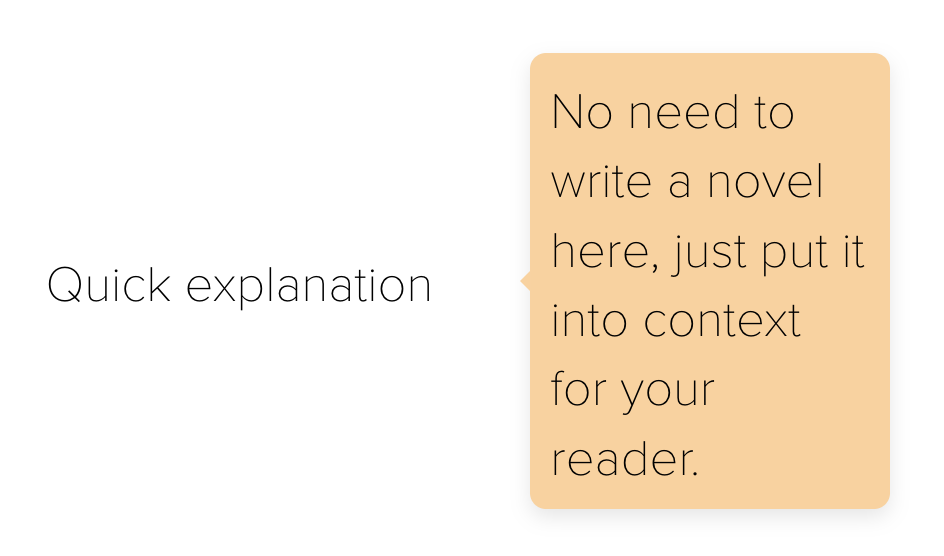
Adding a CSS Speech Bubble in Squarespace
To create a speech bubble, start by adding a code block to your page. Paste the base code into the block and edit the text inside it to match what you want displayed.
You can change the message directly in the code. If you don’t edit it, it will display the default text. Once updated, the message will appear when someone hovers over the element.
To adjust the text size, wrap the text in a heading tag. For example, adding an H4 tag will increase the size of the text inside the speech bubble.
Add a code block to your page
Paste the provided code below
<span class="text-trigger">
→Learn more
<span class="speech-bubble">This is the speech bubble text.</span>
</span>Edit the text inside the code
Wrap text in H3 or H4 to adjust size
FAQ
Q1: Can I reuse the same code block for different messages?
A1: No, each speech bubble requires its own code block with its own text. This allows you to control the content and placement individually.
Q2: What happens if I place multiple speech bubbles close together?
A2: They may overlap or feel crowded depending on your layout. Spacing and placement should be adjusted to keep the interaction clear.
Customizing Speech Bubble CSS Styles
Once the code is added, paste the custom CSS into the CSS panel. This controls how the speech bubble looks and behaves.
You can change the width to make the bubble larger or smaller depending on your layout. Background color and text color can also be adjusted directly in the CSS.
Other properties like padding, border radius, and alignment allow you to refine the appearance. The border radius controls how rounded the corners are, while padding adjusts spacing inside the bubble.
Adjust width to control size
Change background color of the bubble
Modify text color inside the bubble
Update padding and border radius
Align text left or center
The tail of the speech bubble is controlled separately. Removing that part of the CSS removes the tail completely, leaving only a box.
FAQ
Q1: How can I keep my styling consistent across multiple speech bubbles?
A1: Use the same CSS rules without targeting a specific block ID. This ensures all speech bubbles follow a uniform style.
Q2: When should I use different styles for different speech bubbles?
A2: Use variations when the placement or purpose changes, such as highlighting different types of content. This helps maintain clarity without making the design feel repetitive.

Code Snippet
/* Container for the trigger text */

.text-trigger {
position: relative;
cursor: pointer;
display: inline-block;
}

/* The Speech Bubble right */

.speech-bubble {
visibility: hidden;
width: 160px;
background-color: #D9B783; /* Change bubble color here /
color: #9D5248;
text-align: left;
padding: 10px;
border-radius: 8px;
position: absolute;
z-index: 100;
top: 50%; / Position to the right of the text */
bottom: auto;
left: 125%;
transform: translateY(-50%);
opacity: 0;
transition: opacity 0.3s;
box-shadow: 0px 4px 10px rgba(0,0,0,0.1);
}

/* The "Tail" of the bubble right*/

.speech-bubble::after {
content: "";
position: absolute;
top: 50%;
left: -10px;
transform: translateY(-50%);
border-width: 5px;
border-style: solid;
border-color: transparent #D9B783 transparent transparent;
}

/* Show the bubble on hover */

.text-trigger:hover .speech-bubble {
visibility: visible;
opacity: 1;
}
Positioning Your CSS Speech Bubble
You can control where the speech bubble appears by modifying positioning values in the CSS. This allows you to display it above or to the right of the element.
If you want different styles in different places, use a block ID. This lets you apply specific CSS to individual code blocks instead of all of them.
A browser extension can help you find the block ID. Once copied, paste it at the beginning of your CSS and wrap the styles in brackets so they apply only to that block.
Use positioning values to move the bubble
Adjust top, bottom, and left settings
Use transform for fine positioning
Apply block ID for unique styling
If you don’t use a block ID, the same styling will apply to all speech bubbles on the page.
FAQ
Q1: When should I use a block ID instead of global CSS?
A1: Use a block ID when placement or styling needs to vary between elements. This gives you more control without affecting other instances.
Q2: What’s the risk of adjusting positioning values without testing?
A2: Small changes can shift the bubble too far from the trigger element or off-screen. It’s important to check placement across different screen sizes.
When to Use Speech Bubbles on Your Website
Speech bubbles help reduce clutter by hiding extra information until a user hovers over an element. This keeps your page cleaner while still providing useful details.
They are useful for short explanations, quick context, or highlighting important details without overwhelming the page.
Provide quick explanations or definitions
Highlight what a user will receive
Share pro tips
Display testimonials
Answer frequently asked questions
Speech bubbles work best when they support your main message without distracting from it.
FAQ
Q1: Can speech bubbles impact user experience if overused?
A1: Yes, using too many can make the page feel busy or distracting. They work best when used selectively to support key points.
Q2: How do I decide what content should stay visible vs hidden in a speech bubble?
A2: Keep primary messaging visible and move secondary or supporting details into the bubble. This helps maintain clarity while reducing visual clutter.

Final Thoughts
Adding a CSS speech bubble in Squarespace gives you a simple way to control how and when supporting information appears on your page. With just a code block and a few CSS adjustments, you can manage styling, placement, and interaction without changing your overall layout.
The key is using it with intention. Speech bubbles should support your main message, not compete with it—so focus on clarity first, then use them to reinforce or highlight information where it adds value.
This page contains affiliate links