How to Add Google Reviews to a Squarespace Website
This tutorial walks through how to add Google reviews to your Squarespace website using the Common Ninja Google Review Widget. It covers where to get the correct Google review link, how to customize the widget, and how to embed it into a Squarespace page.
IN THIS POST YOU'LL LEARN:
How to pull Google reviews using the correct Google Maps URL
How to customise the look and behavior of the widget
How to embed the widget into a Squarespace page
How visitors can leave a Google review directly from your site
Use Common Ninja to Add Google Reviews to a Squarespace Website
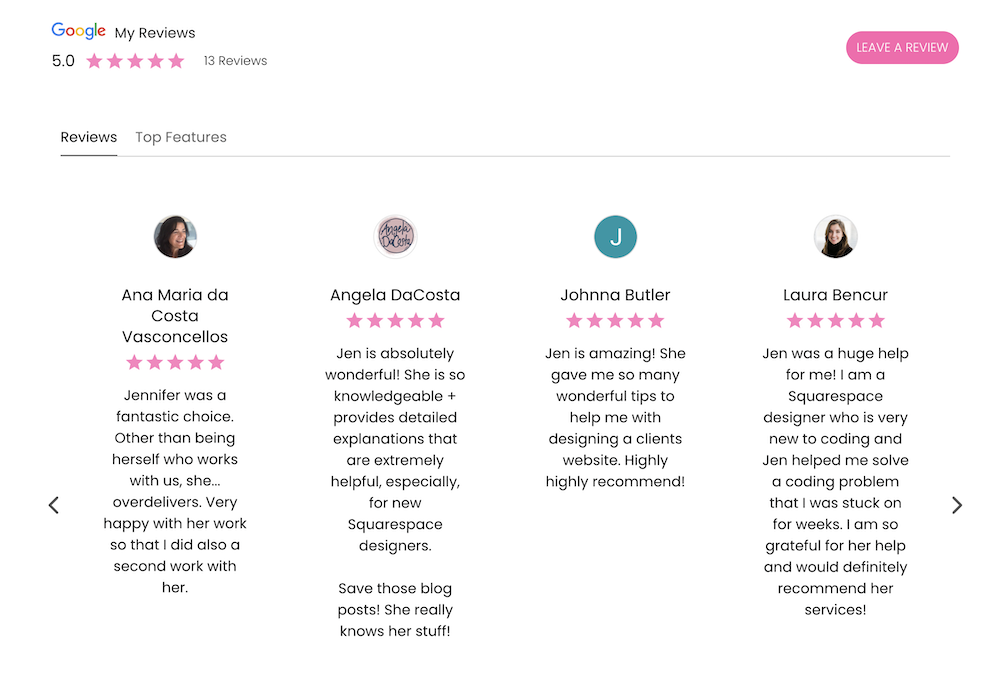
To add Google reviews, start by going to the Common Ninja Google Reviews widget page. From there, you can try the widget for free and begin setting it up.
The widget prompts you to paste the URL of your business from Google. This step is important, and using the wrong link can prevent the reviews from loading correctly. If you run into issues, Common Ninja provides a help page that explains exactly what type of link is required.
Steps to connect your Google reviews:
Search for your business on Google or open it directly in Google Maps
Click into your business listing
Scroll to the reviews section
Copy the Google Maps review URL
Paste the URL into the Common Ninja widget and submit
FAQ
Q1: Do I need technical skills to use Common Ninja with Squarespace?
A1: No advanced technical skills are required to get started. The setup process is designed to be beginner-friendly and guided.
Q2: Is Common Ninja the only way to add Google reviews to Squarespace?
A2: No, there are other tools available, but Common Ninja is one option that works well with Squarespace. The best choice depends on your preferences and how much customization you want.

Customize the Look and Feel of Your Google Reviews Widget
Once the reviews are connected, Common Ninja provides several visual layout options. You can choose how reviews are displayed and adjust the design to better fit your website.
Different layouts allow you to control how much scrolling is required. A slider-style layout can help prevent long blocks of reviews from taking over the page, while other layouts show reviews in stacked formats.
Brand customization options include colors, fonts, and button styles. You can also make small design tweaks, such as adjusting button borders to match pill-shaped buttons or changing text to all caps.
Common customisation options include:
Choosing a review layout style
Adjusting primary and accent colours
Selecting how many reviews are displayed
Turning animations on or off
Modifying button shape and text styling
Plus a whole lot more!
FAQ
Q1: Do I need to match the widget design exactly to my website?
A1: No, an exact match isn’t required for the widget to look good. Small adjustments can still help it feel visually consistent with your site.
Q2: Will changing the widget design affect my existing website layout?
A2: No, the widget only controls how the reviews display within its own area. It won’t change the rest of your Squarespace layout or styling.

Adjust Advanced and AI Features in Common Ninja
Common Ninja includes additional settings beyond basic design options. Under the advanced settings, you can control how many reviews are visible and fine-tune typography choices.
One unique feature is the ability to activate AI-generated content. When enabled, visitors can view highlighted features based on review content. This adds another layer of interaction to the widget.
There are also display options that control what metadata is shown, such as how long ago a review was written. These settings can be toggled on or off and update automatically without needing to re-embed the widget.
Available advanced options include:
Setting the number of visible reviews
Choosing a font style
Enabling or disabling review dates
Activating AI-powered review summaries
FAQ
Q1: Do advanced widget settings affect how visitors trust the reviews?
A1: These settings do not change the reviews themselves. They only influence how the information is presented visually.
Q2: Is it okay to leave the default advanced settings as they are?
A2: Yes, many site owners keep the default settings and adjust them later if needed. The widget works even without customising advanced options.

Embed the Google Reviews Widget Into Squarespace
After customising the widget, publish it in Common Ninja and copy the embed code provided. This code is what you will add to your Squarespace website.
In Squarespace, navigate to the page where you want the reviews to appear. Add a code block, paste in the embed code, and position it where it fits best within your layout.
Once embedded, the reviews will display live on your site. Visitors can scroll through reviews, explore highlighted features, and even click through to leave a Google review directly.
Steps to embed the widget in Squarespace:
Publish the widget in Common Ninja
Copy the embed code
Open the target page in Squarespace
Add a code block
Paste the embed code and save
FAQ
Q1: Can I remove the reviews widget later if I change my mind?
A1: Yes, the widget can be removed at any time without affecting the rest of your site. Removing it does not delete your Google reviews.
Q2: Does embedding a reviews widget slow down a Squarespace website?
A2: In most cases, a single reviews widget has minimal impact on site performance. Squarespace pages typically load normally when widgets are used responsibly.

Most business owners know they should be collecting testimonials and client feedback, but they aren’t sure what to ask—or how to ask in a way that actually produces useful, credible proof. Vague requests lead to vague responses, and great client experiences often go undocumented.
That’s why I created Proof Builder—a strategic feedback system that shows you exactly what questions to ask, when to ask them, and how to turn real client responses into strong, trust-building testimonials.
Instead of awkward requests or unusable blurbs, you’ll walk away with clear, permission-based proof you can confidently use across your website and marketing.

Most business owners already have credibility—but their website doesn’t always show it. Some overlook authority they didn’t realize they had. Others know their expertise but struggle to communicate it clearly in a way visitors can quickly understand.
That’s why I created Authority Signals—a practical, fill-in-the-blank workbook that helps you uncover the authority you may be missing and clarify how to convey the authority you already know you have, using proven website signals like testimonials, statistics, credentials, logos, awards, and press.
Instead of guessing what to say or overloading your site, you’ll identify the proof that actually matters—so visitors can recognize your value quickly and feel confident choosing you.
Final Thoughts
Adding Google reviews with the Common Ninja Google Review Widget to your Squarespace website helps to build trust and reinforce your authority. Testimonials act as social proof, showing potential customers that real people have had positive experiences with your business. When reviews are visible on your website, they reduce hesitation, increase credibility, and help visitors take the next step.
If you want to go beyond simply embedding reviews, tools like Proof Builder help you collect and use testimonials more intentionally. Instead of generic praise, Proof Builder guides clients through thoughtful prompts that uncover why they chose you, what changed, and what made the experience different. This feedback can then be used across your website to address objections, highlight expertise, and reinforce trust.

This page contains affiliate links